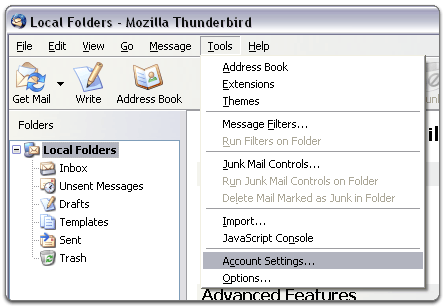
- In Mozilla Thunderbird, from the Tools menu select Account Settings.
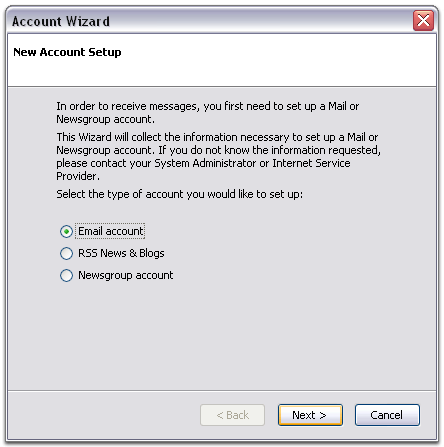
- Select Email account, and then click Next.
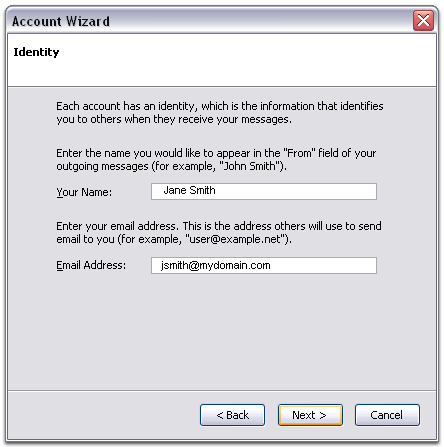
- Enter your name and e-mail address.
- Select POP as the type of incoming server you are using. Your incoming server is mail.mydomain.com. Click Next.
(Enter your actual domain name in place of mydomain.com.)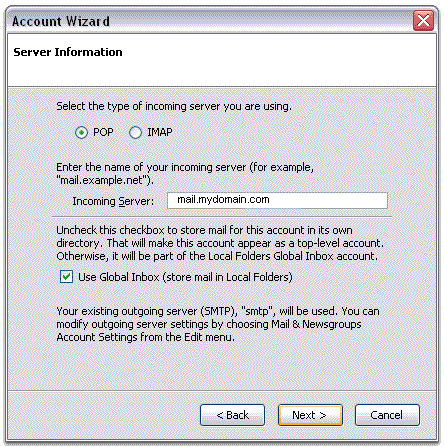
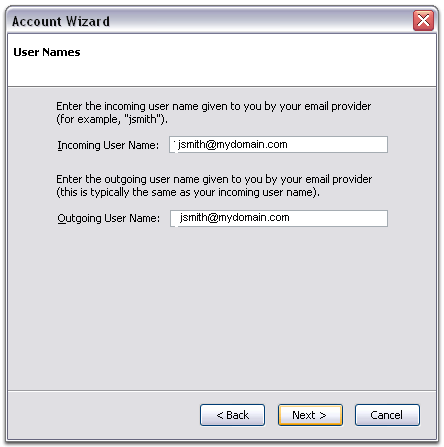
- Enter your e-mail address for the Incoming User Name, and Outgoing User Name. Click Next.
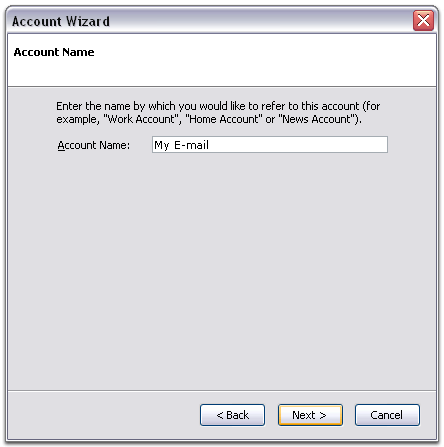
- Enter a name for your email account and click Next.
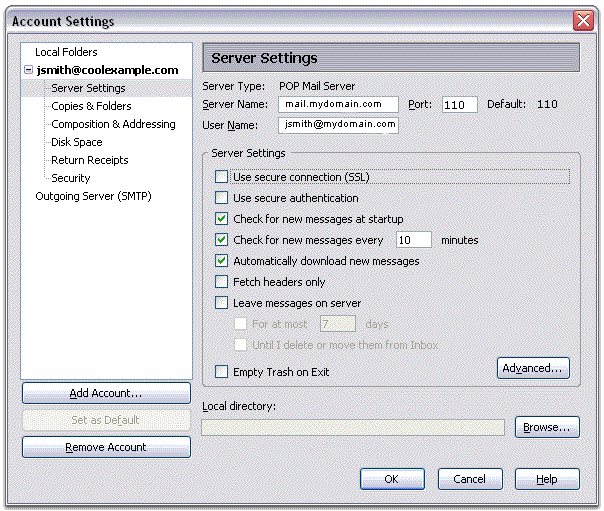
- Verify your account information and click Finish.
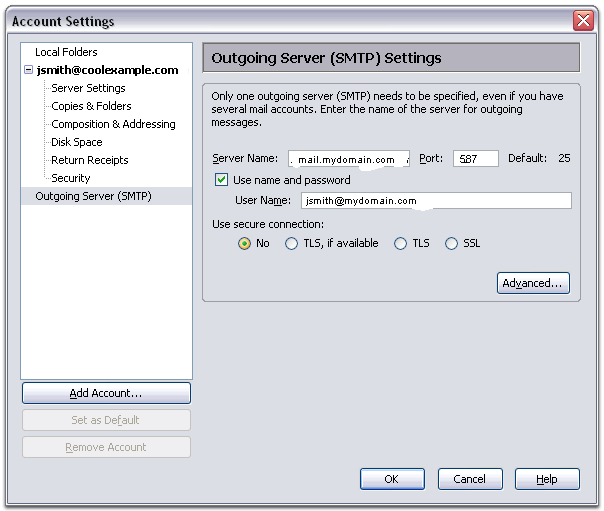
- In the Account Settings window, select Outgoing Server listed below your new account.
- Type mail.mydomain.com for the Server Name and change the Port setting to 587.
(Enter your actual domain name in place of mydomain.com.) - Select Use name and password and enter your e-mail address. Thunderbird will ask you for your password the first time you try to send mail. Click OK.