Entourage Setup as POP3

When you run Entourage for the first time, it will ask for some initial information.
  1. Entourage will ask if you want it to be your default mail client. Click on the Yes button.
  2. Enter your name into the First name and Last name boxes. Click the forward arrow in the bottom-right corner of the screen (next to the number "1") to continue.
  3. Fill out the Home address information (this is optional). Click the forward arrow to continue.
  4. Fill out the Work address information (this is optional). Click the forward arrow to continue.
  5. Click on the dot next to "I want to start using Entourage without importing anything". Click the forward arrow to continue.
  6. You can optionally enable the Junk Mail filter.

Once you've completed the above steps, continue by entering your email settings

  1. With Entourage open, click on the Tools menu at the top of the screen and then click on Accounts.
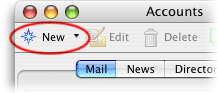
  2. When the Accounts window opens, click the New button in the upper-left corner of the window to start the Account Setup Assistant.
     
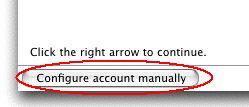
  3. Select the button Configure account manually
    .
  4. The New Account box appears. Select POP for your server type. Click OK.
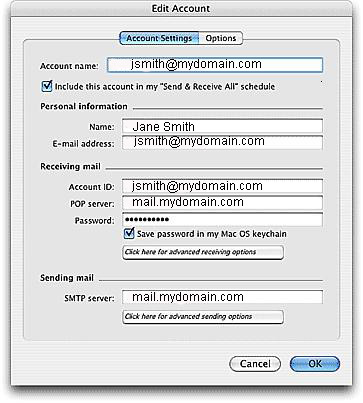
  5. The Edit Account box appears. In the Account name: box enter your email address (e.g., jsmith@mydomain.com)
  6. In the Name: box enter your name as you would like it to appear on the messages you send (e.g., Jane Smith, or Acme, Inc.)
  7. In the E-Mail address box enter your email address (e.g., jsmith@mydomain.com)
  8. In the Account ID box enter your email address (e.g., jsmith@mydomain.com)
  9. In the POP server: box enter mail.mydomain.com (Enter your actual domain name in place of mydomain.com).
  10. In the Password box enter you password.
  11. Check the Save password in my Mac OS keychain box
  12. In the SMTP server box enter mail.mydomain.com (Enter your actual domain name in place of mydomain.com).
  13. Click on the Click here for advanced sending options button.
  14. Place a checkmark in the box next to Override default SMTP port: and change 25 to 587.
  15. Check the SMTP server requires authentication box and close by clicking on the small square in the upper left-hand corner.
  16. Click the OK button to close the Edit Account window, and then close the Accounts window.

Editing Your Email Settings

With Entourage open, click on the Tools menu at the top of the screen and then click on Accounts.

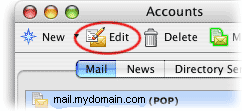
When the Accounts window opens click once on the account you want to edit to highlight it, then click the Edit button at the top of the Accounts window. Do not click the Edit menu at the very top of the screen.

The first tab of the Edit Account window is called Account Settings

POP mailboxes will have an Account Settings tab and an Options tab. The Options tab contains settings for setting a mail signature.

  • 10 Users Found This Useful
Was this answer helpful?

Related Articles

Outlook Express Setup as IMAP

1. In Microsoft Outlook Express, from the Tools menu, select Accounts. 2. Go to the Mail tab...

Windows Mail Setup as POP3

  In Windows Vista, Windows Mail replaces Outlook Express as the standard email client. Windows...

Outlook 2016 Setup as POP3

1. Open Outlook 20162. Go to File --> Info --> Add Account3. Choose "Advanced Options"...

Outlook 2007 Setup as POP3

Open Outlook. Click on Tools, then select Account Settings. Select the E-mail tab...

Outlook 2010 Setup as POP3

Open Outlook 2010. Go to File -> Info -> Add Account. Select the Manually configure...